Cron jobs fail quietly. They run at 02:00 when you expected 01:00. They write logs stamped in UTC while your team reads them in local time. They trigger twice after daylight saving time changes. Hours disappear into log reviews and shell sessions just to answer a simple question: What time does the server think it is?
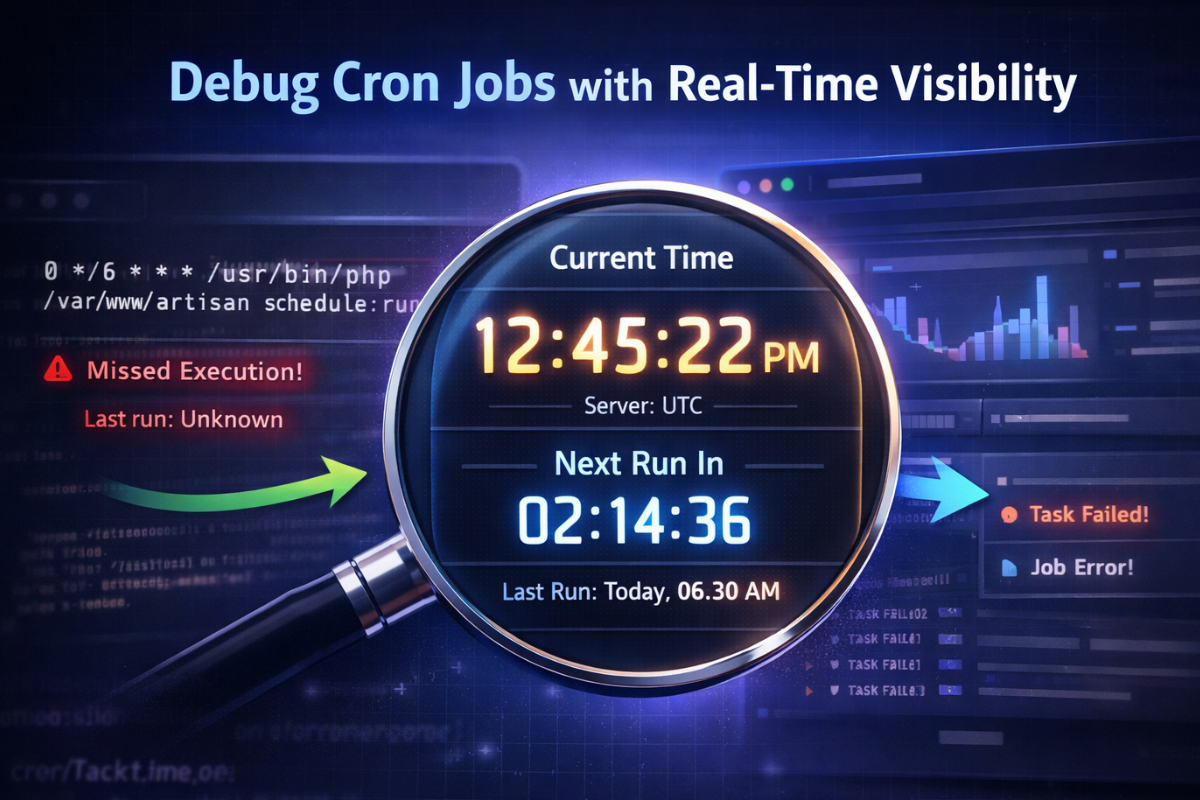
One practical fix is to embed a visible time widget directly inside your internal dashboard. A real-time clock sitting beside your job status panel removes guesswork. It gives developers instant confirmation of server time, timezone alignment, and current execution windows without opening another terminal.
This small addition often prevents large debugging sessions. It also reinforces the lessons covered in our guide on automating tasks with cron, where scheduling accuracy determines whether automation feels reliable or fragile.
Quick Summary
- Visible server time reduces cron debugging guesswork
- Real-time clocks expose timezone and drift issues immediately
- Dashboards become operational tools, not just status boards
- Small UI changes can prevent recurring log mismatches
Why Cron Debugging Often Goes Wrong
Cron works on trust. You define an expression. The system executes at the scheduled minute. Most days, nothing breaks. Yet timing errors are common in production systems. They usually appear during server migrations, timezone adjustments, or daylight saving changes.
The root problem is visibility. Developers check logs. They compare timestamps. They open a shell and run the date command. Each step requires context switching. Each step adds a delay. Without a visible reference clock, teams rely on assumptions about server configuration.
This becomes worse in distributed environments. A container may run in UTC. The host machine might be set to a regional timezone. Application logs may be formatted differently. Misalignment creeps in silently.
Making Server Time Visible Where It Matters
A dashboard is already where you monitor job status, queue depth, and database health. Adding a live clock beside those metrics turns it into a diagnostic instrument. You can choose a digital clock for precision, an analog display for quick visual scanning, or a text-based format that shows the the timezone explicitly.
Placement matters. The clock should sit near cron job panels or scheduler status widgets. It should reflect server time, not browser time, if possible. If the dashboard supports backend rendering, bind the widget to server output. If not, clearly label which timezone is shown.
Timezone drift creates subtle but costly inconsistencies between system clocks, application logs, and scheduled executions. Even small offsets can cascade into delayed jobs or mismatched records, especially in distributed environments where services operate across regions. Understanding how time zone differences in server synchronization affect cron behavior highlights why real-time visibility matters. A dashboard clock exposes drift immediately, allowing teams to correct alignment before it turns into a production issue.
Three Common Cron Timing Failures
These failures appear repeatedly in Linux environments. They are simple. They are preventable.
- Timezone mismatch between server and application configuration. Jobs execute at the correct server time but the wrong business time.
- Daylight saving transitions that skip or duplicate scheduled minutes. Jobs run twice or not at all.
- Clock drift due to NTP misconfiguration. The system clock slowly diverges from real time.
Each of these becomes easier to spot with a visible clock on your dashboard. The moment a job triggers unexpectedly, you compare it with the displayed time and know whether the issue lies in configuration or scheduling logic.
From Log Guesswork to Immediate Context
Traditional debugging starts with logs. You filter entries. You check timestamps. You compare them with expected execution windows. This process is reactive. It happens after something fails.
A dashboard clock changes the workflow. During deployment, you watch the clock tick toward the next scheduled run. You confirm alignment before the job executes. If it triggers early or late, you see it in real time.
This proactive context reduces stress. It also reduces dependency on ad hoc shell commands during incidents. Your dashboard becomes the first line of verification.
Choosing the Right Clock Format
Different teams prefer different visual cues. A digital clock is precise. It shows seconds ticking. It pairs well with minute-level cron expressions. An analog clock offers intuitive visual awareness. A word clock emphasizes readability in shared monitoring rooms.
Below is a comparison table to guide selection.
| Widget Type | Best For | Visual Strength | Timezone Clarity |
|---|---|---|---|
| Digital Clock | Minute-level cron jobs | High precision | Clear with label |
| Analog Clock | Wall dashboards | Instant visual cue | Moderate |
| Text Clock | Minimal interfaces | Readable format | High |
| Word Clock | Shared monitoring areas | Human-friendly | Depends on config |
Integrating the Clock into Your Workflow
Embedding a clock is simple from a technical standpoint. The impact depends on how teams use it. Treat it as a diagnostic signal, not decoration.
Consider these practical steps:
- Label the timezone clearly next to the clock display
- Align cron expressions with the same timezone reference
- Document expected run windows inside the dashboard UI
- Review clock alignment after server migrations
Place a descriptive note beside critical jobs. For example, a nightly backup is expected at 02:00 server time. During testing, watch the clock approach that minute. Confirmation happens instantly.
Daylight Saving and the Human Factor
Daylight saving adjustments remain a common source of cron confusion. The system clock shifts. Scheduled jobs tied to local time may run unexpectedly. Teams notice only after a missed report or duplicate email.
A visible clock exposes the shift immediately. When clocks change, your dashboard reflects it. Developers see the new time context without logging into the server.
Understanding how cron interprets system time is critical. The scheduling mechanism itself is documented clearly in the crontab manual page. Pairing that conceptual understanding with a live clock view prevents theory from drifting away from practice.
Reducing Incident Response Time
Every production issue carries cognitive load. Engineers scan logs under pressure. They question whether jobs are executed. They compare timestamps across services.
A dashboard clock reduces one entire class of uncertainty. The current server time is visible. The team aligns around it immediately. That shared reference speeds triage discussions.
Consider an example. A payment reconciliation job fails at 03:05. Logs show execution at 02:05 UTC. Your team operates in a different timezone. With a visible clock, everyone confirms the server context instantly. No guessing. No delay.
Extending the Concept Beyond Cron
The idea of visible time extends to other automation layers. Scheduled database maintenance. Batch data imports. Log rotation scripts. Each relies on predictable time alignment.
In containerized environments, you can display both host time and container time if necessary. If they diverge, you spot it quickly. That insight may prevent subtle data inconsistencies.
Time awareness also strengthens security auditing. If log entries appear misaligned with dashboard time, you should investigate sooner. Small mismatches often reveal configuration drift.
Turning Dashboards into Operational Instruments
A dashboard should not be a passive display. It should guide decisions. Adding a clock reinforces temporal awareness across the team.
Developers begin to think in terms of execution windows. They validate cron expressions before deploying. They check time alignment during server provisioning. The visible clock becomes part of the standard review.
This shift may sound minor. It compounds over months. Fewer missed jobs. Fewer time zone surprises. Fewer late-night debugging sessions.
Building Confidence Through Visibility
Automation depends on trust. Trust depends on visibility. A simple clock inside your internal dashboard strengthens both.
Cron itself is stable. Linux scheduling rarely fails without cause. The problems arise from human assumptions about time. Making time visible closes that gap.
Next time a job misfires, ask a simple question before opening logs. What time does the server think it is right now? If the answer is already visible on your dashboard, you have removed one entire layer of friction from your debugging process.